How to sync Joplin notes with Infomaniak kDrive

In a previous article, we configured OpenSuse and Fedora to work with Infomaniak kDrive, even though Infomaniak doesn't officially support Linux.
 Marco Molteni
Continuing our journey toward a free and independent tech stack, I'll show you how to synchronize Joplin notes across multiple devices using Infomaniak kDrive.
Joplin is an excellent open-source note-taking application. If you enjoy using it, consider supporting its development by subscribing to Joplin Cloud.
However, Joplin also supports several synchronization services, including Dropbox, OneDrive, and WebDAV.
If you already use Infomaniak kDrive, you can configure Joplin to synchronize your notes with just a few steps.
I'm using Kubuntu 26.10 and MacOS for this tutorial, but the configuration is similar on other platforms.
Step 1: Open Joplin's synchronization settings
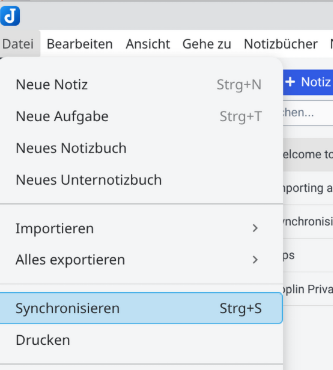
On Linux, navigate to File → Synchronization.
On macOS, open Joplin → Preferences.
Alternatively, click the Synchronize button. If synchronization hasn't been configured yet, Joplin will open the configuration screen.
Step 2: Select the self-hosting option
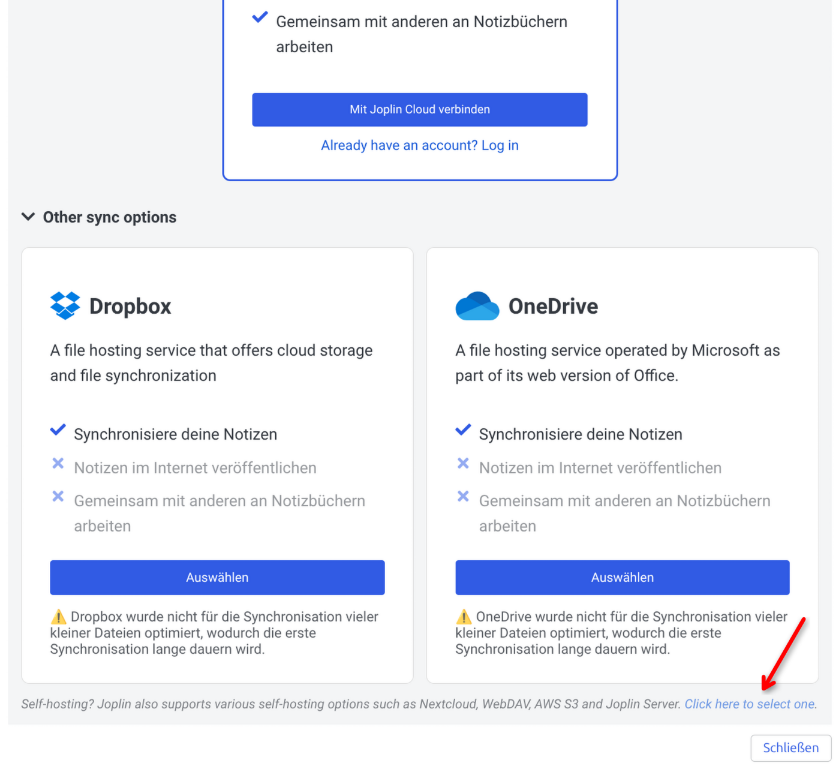
Scroll to the bottom of the available cloud services and select Self-hosted.
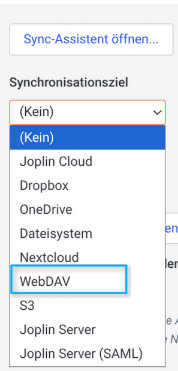
Step 3: Choose WebDAV
Select WebDAV as the synchronization target.
Step 4: Find your kDrive ID
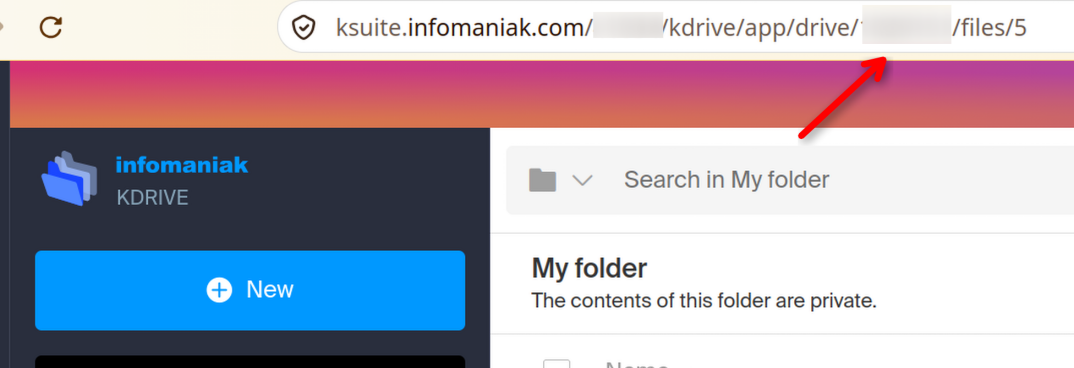
Open kDrive in your browser and look at the URL.
Find the numerical ID between /drive/ and /files/. You'll need this ID to configure the WebDAV connection.
https://ksuite.infomaniak.com/123/kdrive/app/drive/45678/files/5
In this example, the kDrive ID is 45678.
Step 5: Configure the WebDAV connection
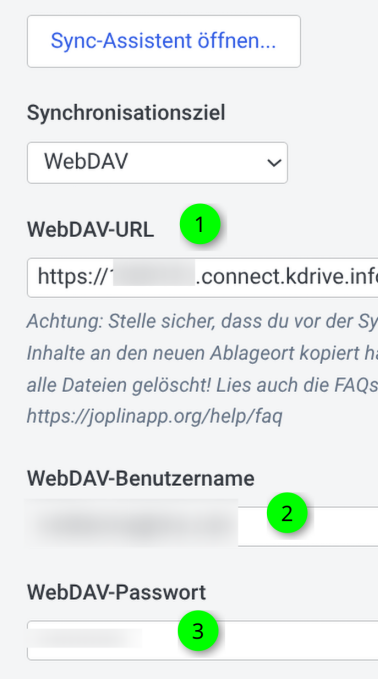
Enter the following information in Joplin's WebDAV configuration screen.
1 - WebDAV-URL
This is the address used to connect your drive, format: https://YOUR_NUMBER.connect.kdrive.infomaniak.com/YOUR_TARGET_FOLDER
I recommend creating a dedicated folder for Joplin. Otherwise, Joplin will store its synchronization files in the root directory of your kDrive.
You can choose any folder name, such as joplin, cloud/notes, or sync/joplin.
Example: https://1234.connect.kdrive.infomaniak.com/joplin
2 - WebDAV-Username
Enter the username associated with your Infomaniak account.
3 - WebDAV - Password
Enter the password used to authenticate your WebDAV connection.
If you don't have 2FA enabled you can use your Infomaniak user password. If you enabled 2FA (recommended) you'll need to generate an application-specific password.
- Once you've completed the configuration, click Synchronise to start syncing your notes.