GitLab: build and distribute your Java application using a Docker image
The goal of this post is to build an application with Gitlab, build the docker image, and store it in the GitLab Repository.
We will use the free version of GitLab. The example is using a Java application and maven.
This is a basic setup that you can extend and modify according to your requirements.
.gitlab-ci.yml
alt="gitlab ci" width="400" height="231"/>
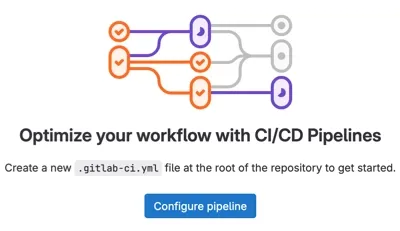
To tell GitLab what it has to do with our project we have to create a .gitlab-cy.yml file in the root folder of our project.
The file will contain the steps required to build and distribute our application.
stages
In our .gitlab-ci.yml file we have to define the stages to be done, in our case we define 2 stages:
stages:
  - build
  - dockerize
build will build our application from the source code and dockerize will create the docker image and store into the registry.
When the image is stored in GitLab, your server or cloud can retrieve and deploy it.
variables
In our yml we define some variables that can be used in the different stages:
variables:
  MAVEN_OPTS: >-
  -Dhttps.protocols=TLSv1.2
  -Dmaven.repo.local=$CI_PROJECT_DIR/.m2/repository
  -Dorg.slf4j.simpleLogger.showDateTime=true
  -Djava.awt.headless=true

  CONTAINER_TEST_IMAGE: $CI_REGISTRY_IMAGE:$CI_COMMIT_REF_SLUG

  MAVEN_IMAGE: maven:3.9.6-eclipse-temurin-21-jammy

  IMAGE_TAG: $CI_REGISTRY_IMAGE:$CI_COMMIT_REF_SLUG

  # Tell 'docker:dind' to enable TLS (recommended)
  # and generate certificates in the specified directory.
  DOCKER_TLS_CERTDIR: "/certs"

  MAVEN_CLI_OPTS: >-
  --batch-mode
  --errors
  --fail-at-end
  --show-version
  --no-transfer-progress
  -DinstallAtEnd=true
  -DdeployAtEnd=true
cache
We can cache the downloaded dependencies between builds.
cache:
  paths:
    - .m2/repository
stage number one, build the application
maven-build:
  stage: build
  image: $MAVEN_IMAGE
  script:
    - mvn $MAVEN_CLI_OPTS clean install
  artifacts:
    name: "my-app"
    paths:
      - target/*.jar
Now we can build our application from the source code.
stage number two, docker build and store
The last step is to retrieve the JAR built in the previous stage, read the dockerfile in our project, and build the image.
The image will be stored in your registry for the project.
dockerize:
  stage: dockerize
  # Specify a Docker image to run the job in.
  image: docker:latest
  # Specify an additional image 'docker:dind' ("Docker-in-Docker") that
  # will start up the Docker daemon when it is brought up by a runner.
  services:
    - docker:dind
  script:
    - docker login -u $CI_REGISTRY_USER -p $CI_REGISTRY_PASSWORD $CI_REGISTRY
    - docker build -t $IMAGE_TAG .
    - docker push $IMAGE_TAG
  dependencies:
    - maven-build
Dockerfile
To build the docker image you need to define a Dockerfile in the root folder of your project.
Here you find a basic example of dockerfile that builds and launches a Java application.
# Example using MS Build of OpenJDK image directly
FROM eclipse-temurin:21-jre-alpine

RUN addgroup -S spring && adduser -S spring -G spring

# if you use a non-root user, activate it after the mkdir
USER spring:spring

COPY target/*.jar /opt/myApp.jar

# we set /opt as the working directory for the container
WORKDIR /opt

ENTRYPOINT ["java", "-jar", "myApp.jar"]
Build it
When you update your code source, the build should start and the artifacts will be stored in the Artifacts page.
You can access remotely your Repository with your username and an access token.